Cloud Data Export: Choosing the Right Method for Your Use Case

If you just want to download your data, your provider's built-in tool (Takeout, the cloud console) is enough. If you need to migrate or sync at scale and keep your files intact, use an API, a command-line tool or rclone. If you want full control over your data with managed support, a managed private server is a safe long-term option.
Key takeaways:
- Native exports through Takeout or a provider's console are easy to use, but they give you little control, especially with large volumes or when you need to keep metadata.
- To migrate efficiently without losing data, use rclone or API commands. They give you control, checksum verification and support for many providers.
- Large database exports from services like BigQuery or Firestore have to be split into multiple files, and you need to watch format compatibility and quotas closely.
- Checking that an export is complete, by comparing files, verifying checksums and running test exports first, keeps you from losing data or important permissions.
- A managed private server gives you full control without any technical skills. It's a good fit if data sovereignty matters to you or if you don't have the skills in-house.
Table of Contents
- What are the ways to export your cloud data?
- How do you use native tools like Google Takeout?
- rclone and the command line: how to migrate without losing data
- How do you export databases and large datasets (BigQuery, Oracle, Firestore)?
- What should you check before starting a cloud data export?
- How do you verify that an export is complete and intact?
- Why exports often leave out metadata and permissions
- Should you automate your cloud exports, and how?
- Yundera: reliable exports without the technical complexity
- What the most common export mistakes teach us
- Sources
- Frequently Asked Questions
What are the ways to export your cloud data?
Four types of methods cover almost every need. Native exports (Takeout, provider consoles) work well for one-off exports and don't require technical skills. API or CLI extraction is built for large volumes and repeatable workflows. Syncing with rclone handles migrations between providers and verifies data integrity along the way. Physical exports using a shipped storage device are only worth it for very large volumes, when the network becomes the bottleneck.
Your choice comes down to three practical factors:
- How much data you need to move (a few gigabytes or several terabytes)
- Whether you need to keep metadata, version history and permissions
- Your budget and available bandwidth
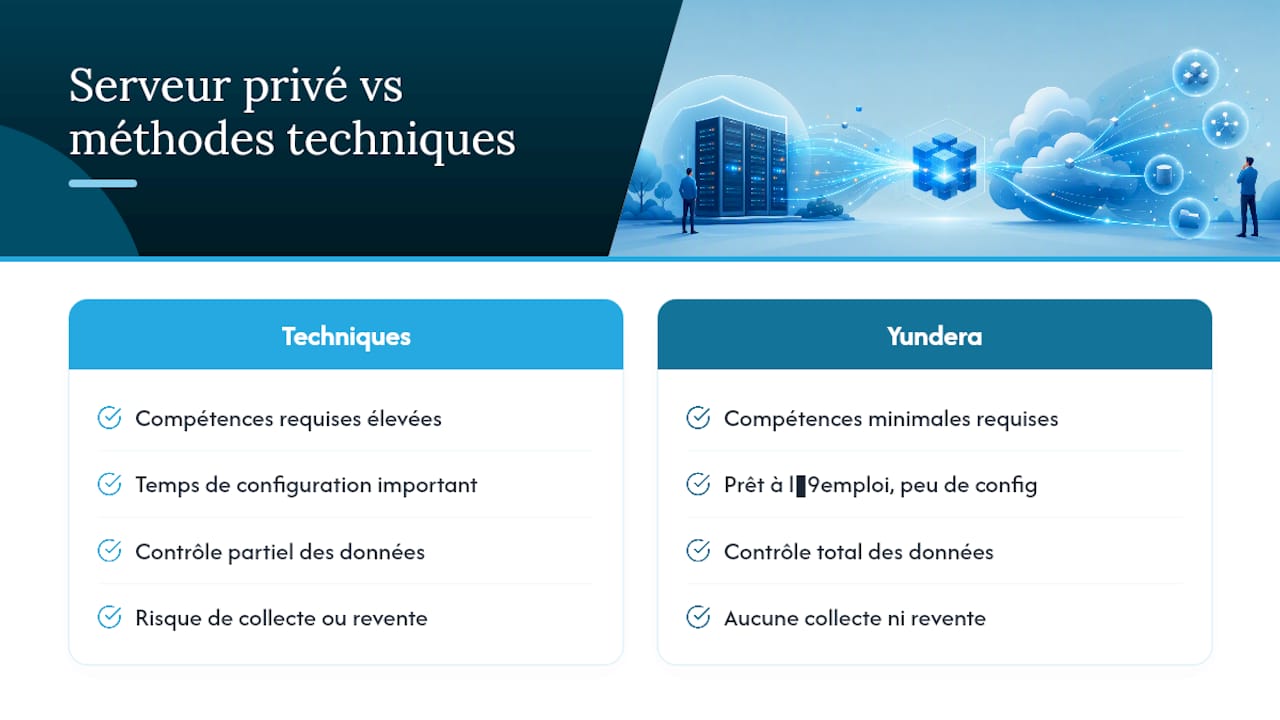
Native exports are free but give you little control. API tools and rclone require some technical skills, but in return you get much more control over the format and over how to resume after an error.
How do you use native tools like Google Takeout?
The tools cloud platforms provide are the easiest place to start. They do have limits, though, and you should know them before relying on these tools for a critical migration.
- Select the services to export: in Google Takeout, you can pick exactly which products to include (Drive, Photos, Gmail, etc.) instead of exporting your entire account.
- Choose the format and frequency: get a single archive or schedule recurring exports, and set a file size that makes the transfer easier.
- Set the destination: Google Takeout can send the archive straight to Drive, Dropbox, OneDrive or Box, so you don't have to download it and upload it again.
- Get the link and check it: most users get their archive the same day, but it can take several days for large exports.
Business cloud consoles have similar key settings: export format, compression level, destination bucket and maximum file size. The main risks are that converting proprietary formats can break formatting, and that you can lose version history or sharing permissions. Native tools rarely handle either of these well.
rclone and the command line: how to migrate without losing data
For a controlled migration between providers, command-line tools can do far more than web interfaces. rclone has become the go-to tool for this kind of job.
- Multi-provider support: rclone works with more than 40 cloud providers, so you can switch from one storage service to another without writing a custom script for each platform.
- Checksum verification: every transfer can be checked automatically, file by file, before it's marked as complete.
- Resume after interruption: if your network drops, you don't have to start over. rclone picks up where it left off.
- Adjustable parallelism: you can set how many transfers run at once based on your available bandwidth, so you don't max out your connection.
On Google Cloud, gsutil and gcloud storage offer similar features for scripting transfers through the API, with service account authentication.
Pro tip: never store API credentials in plain text in a script. Use a secrets manager, grant only the access scopes you actually need, and rotate your tokens regularly.
How do you export databases and large datasets (BigQuery, Oracle, Firestore)?
Large datasets follow different rules than regular files. Here are three real-world cases that show what to plan for.
- BigQuery: the
bq extractcommand lets you choose the output format (CSV, JSON, Avro) and the compression level. Watch out for the 1 GB of logical data per file limit. Above that, add a wildcard to the file name so BigQuery automatically splits the export across multiple files. - Oracle Autonomous Database: the
DBMS_CLOUD.EXPORT_DATAprocedure exports entire tables to object storage in CSV, JSON, Parquet or XML, with built-in compression and encryption options. - Cloud Firestore: a scheduled export requires per-document reads and the right IAM roles for the service account (Datastore import/export and write access to the storage bucket).
All three have one thing in common: the bigger the dataset, the more splitting it into multiple files goes from recommended to required.
What should you check before starting a cloud data export?
A short checklist prevents most unpleasant surprises. Before you start anything, take stock of what you're moving: the number of files, the total size, and any shared folders, which you should list separately.
- Check the IAM roles and API scopes assigned to the account that will run the export
- Check the destination: available space, encryption in transit and at rest, storage region
- Run a test export on a subset of your data before the full export
- Leave the source data untouched until the export has been fully verified
A difference that seems minor may not be: with 500 GB of data, a 2% gap means 10 GB are missing. That's more than enough to hide entire folders that got lost along the way.
How do you verify that an export is complete and intact?
Checking an export takes four steps. First, compare the number of files and the total size between the source and the destination. If the file counts don't match, you know right away that something went wrong.
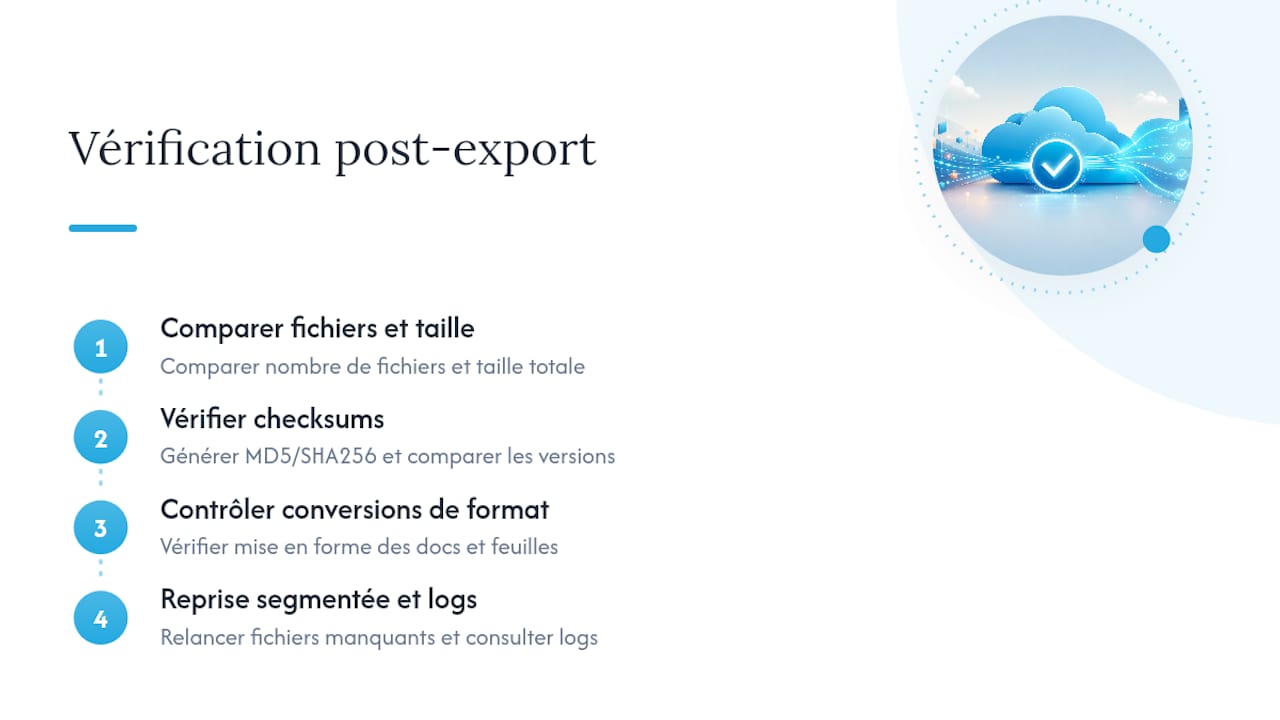
Next, generate checksums (MD5 or SHA256) for your critical files and compare both copies instead of trusting that the files look right. Also check format conversions, especially for office documents and spreadsheets, where formatting can get corrupted silently without any visible error. If you find a mismatch, don't rerun the whole export. Rerun it only for the missing files, and check the logs to find the exact cause before trying again.
Why exports often leave out metadata and permissions
A standard export rarely includes everything it should. According to one detailed breakdown, a complete export should include seven things: files, folder structure, version history, metadata, permissions, public links and settings. Few providers cover all of them.
Article 20 of the GDPR requires data to be provided in a structured, machine-readable format for portability. However, it doesn't guarantee you'll get your version history or derived metadata such as internal modification dates. Most failed migrations happen precisely because permissions and history weren't preserved, as this analysis of vendor lock-in confirms. Exporting audit logs and access control lists (ACLs) before you migrate lets you rebuild those permissions by hand. Our guide to GDPR data portability explains the steps and the best formats to use to stay compliant.
Should you automate your cloud exports, and how?
Automating a recurring export usually follows the same pattern. On Firestore, for example, Cloud Scheduler triggers a Cloud Function that runs the export at regular intervals, with no manual work.
Give the service account only the permissions it needs: an import/export role on the database and a storage role limited to the destination bucket. Narrowing the scope of the export, by limiting it to certain collections or a specific time window, greatly reduces its cost and run time. This matters most on Firestore, where every document read is billed. Finally, set up monitoring that logs each run and sends an alert when one fails, so you don't discover the problem only when you actually need the data.
Yundera: reliable exports without the technical complexity
All the methods above take technical skills and setup time. Another option is a locally hosted managed private server, where your data stays fully under your control and you can export it at any time, with no scripts or command line.
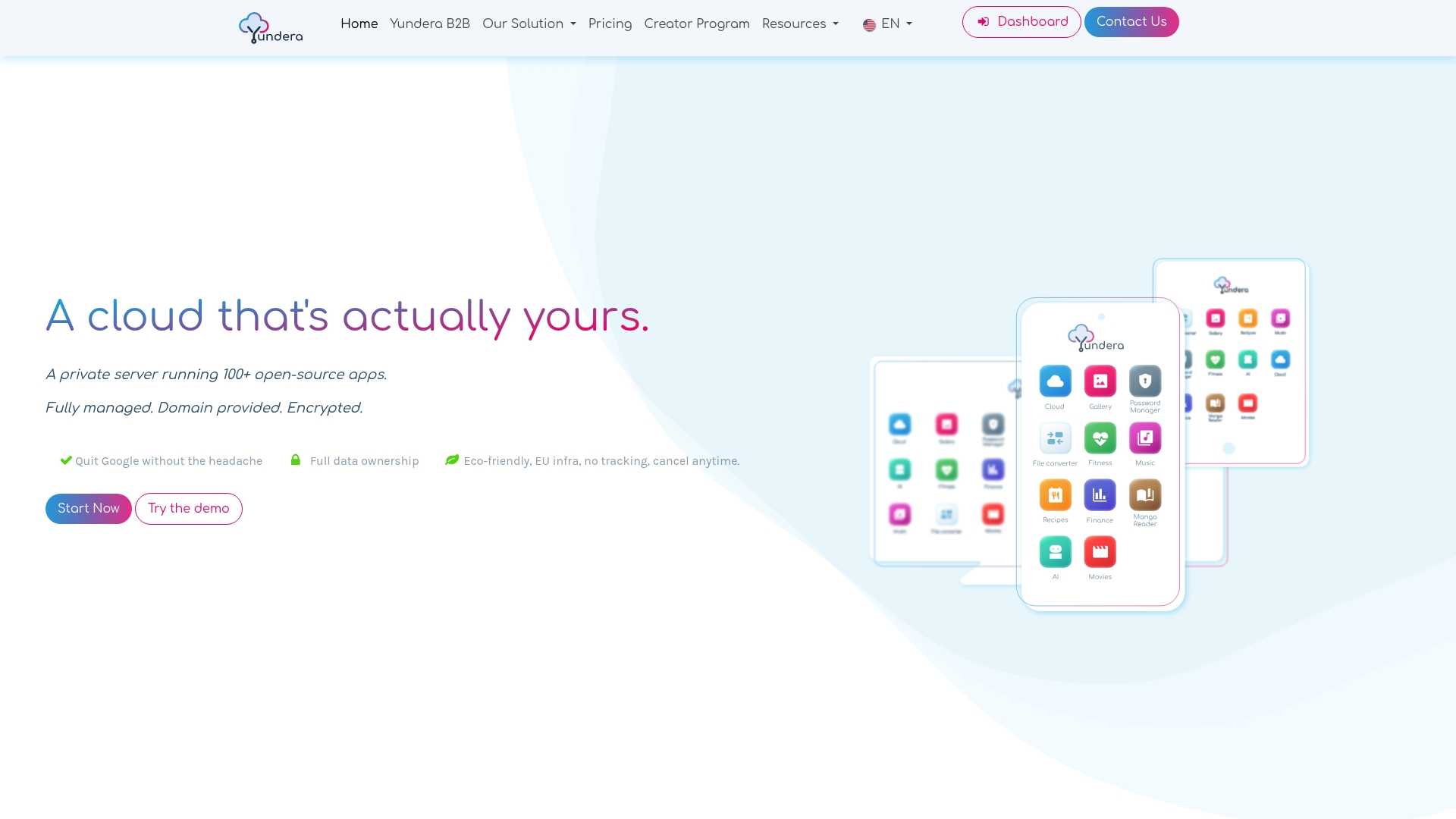
It comes with many ready-to-use open source apps for file storage, website hosting and photo management, all available from your own custom domain. None of your data is collected or sold, which addresses the concerns about lost permissions and missing metadata covered earlier. If you don't have the in-house skills to script your exports, or if data sovereignty is a must, a managed private server helps you avoid most of the technical pitfalls described above. If you're thinking about leaving a service like Dropbox, our guide to migrating to a private server walks you through the whole process.
To see what fits your situation, visit the Yundera private servers page and run an estimate based on how much data you have.
What the most common export mistakes teach us
The most costly mistake is canceling a cloud subscription before confirming that the export is complete. Many professionals find this out too late, after their access is gone and their metadata is lost.
Best practice is to always run a test export on a subset of your data before the full export, then automate checksum verification instead of doing it by hand and skipping it half the time. No single method covers everything. The most reliable approach combines a native tool for quick archives, an API script for structured data, and a managed option for critical data, depending on how sensitive each dataset is.
— Yundera
Sources
- How to download your Google data - Google Account Help
- rclone documentation
- Export table data to Cloud Storage | BigQuery
- Export all your cloud data without losing anything along the way — Benoit Gouthière
Frequently Asked Questions
How do I get my data back from the cloud?
For a one-off export, use your provider's built-in tool (such as Google Takeout). For a controlled transfer you can verify, use an API or CLI tool like rclone to move your data to another location.
What are the main drawbacks of the cloud when exporting data?
The three most common problems are losing metadata and version history, being tied to the provider's proprietary formats, and costs and wait times that rise with the amount of data.
What is the best secure cloud backup solution?
It depends on what you need. Native tools are fine for a one-off archive, while a managed private server like Yundera's lets you export your data at any time and gives you full control over it, without relying on a third-party provider.
What are the main types of cloud to know about for an export?
There are generally three types: public cloud (providers like Google Cloud or Oracle), private cloud (a managed dedicated server, like Yundera's) and hybrid cloud, which combines the two depending on your sovereignty and flexibility needs.
Does DBMS_CLOUD.EXPORT_DATA support multiple formats?
Yes. This Oracle procedure exports tables as CSV, JSON, Parquet or XML, and can compress and encrypt the data as it writes it to object storage.
Cloud Data Export: Choosing the Right Method for Your Use Case